




Are you trying to log in to your Zerodha Demat account but the login is not working? Don’t worry. In most cases, Zerodha login problems are related to an incorrect password, User ID, OTP, 2FA/TOTP, browser issues, internet connectivity, or an expired login session.
Zerodha customers generally access their trading account through Kite, while account and portfolio-related information can also be accessed through Console. If you are unable to access your account, the following troubleshooting steps can help you identify and fix the problem.
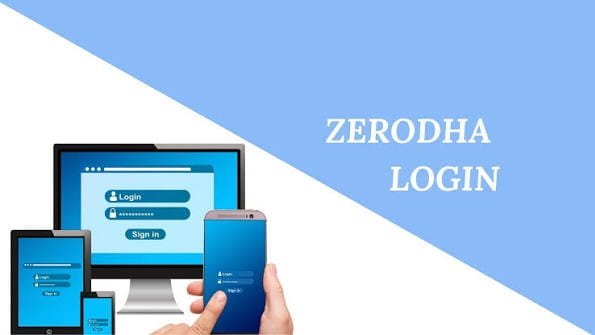
Why Is Zerodha Login Not Working?
There can be several reasons why your Zerodha account login is not working:
- Incorrect User ID or password
- Forgotten login credentials
- OTP not received
- Incorrect or expired TOTP
- Invalid Kite App Code
- Device time not synchronised
- Multiple active login sessions
- Outdated browser or Kite app
- Internet or DNS-related problems
- Temporary account or security restrictions
Let’s look at the solutions one by one.
1. Check Your Zerodha User ID and Password
The first thing you should check is whether you are entering the correct Kite User ID and password.
If you have forgotten your password, click “Forgot user ID or password?” on the Kite login page. Zerodha allows you to reset your password using your User ID and PAN, followed by verification through your registered email address or mobile number.
Make sure you are not accidentally entering your email address instead of your Zerodha User ID.
2. Reset Your Zerodha Password
If your password is not being accepted, resetting it may solve the problem.
On the Kite login page, select Forgot user ID or password, enter the required details and complete the OTP verification. You can then create a new password and continue with the login process.
If your mobile number is on DND and you are not receiving an SMS OTP, Zerodha recommends using your registered email address for the password-reset process.
3. Check Your 2FA, TOTP or App Code
Zerodha uses two-factor authentication to provide additional security during login. Depending on your setup, you may need an App Code, TOTP or OTP.
If your TOTP is incorrect, check that the authenticator app is generating the current six-digit code. TOTP codes are temporary and refresh regularly.
If you use the Kite App Code and receive an “Invalid App Code” message, your device’s date and time may not be synchronised. Zerodha recommends enabling automatic date and time or synchronising the device clock.
4. Try SMS or Email OTP
If you are having trouble with the Kite App Code or TOTP, Zerodha provides an alternative login method using SMS or email OTP in supported situations.
On the login screen, select the option indicating a problem with the mobile app code and then use the SMS/email OTP option when it becomes available.
This can be particularly useful when your authenticator app is unavailable.
5. Check Your Internet Connection
Sometimes the problem is not your Zerodha account but your internet connection.
Try these simple steps:
- Switch from Wi-Fi to mobile data.
- Restart your router.
- Try another network.
- Open another website to check connectivity.
- Update your browser or Kite app.
Zerodha says that access to Kite, Coin and Console can sometimes be affected by an Internet Service Provider’s DNS configuration. In such cases, using an alternate connection or changing the DNS server can resolve the issue.
6. Clear App Data or Reinstall Kite
If the Zerodha Kite app is not working properly, clearing its data can help on Android devices.
Go to your phone’s Settings → Apps → Kite → Storage → Clear Data, and then log in again.
For iOS, Zerodha recommends reinstalling the Kite app when certain connection problems occur.
Remember that clearing app data or reinstalling the application does not mean your Demat holdings are deleted. You are simply removing local app data and logging in again.
7. Check for Multiple Login Sessions
If you are logged in to Kite on another device or browser, the previous session may be terminated when you log in elsewhere.
For example, if you log in on your laptop after already being logged in on another browser, the earlier session may be logged out. This can sometimes result in messages such as “It seems you’re not logged in.”
If necessary, you can clear all active sessions from your Zerodha profile and log in again.
8. You Forgot Your Zerodha User ID
If you cannot remember your User ID, Zerodha provides a recovery process.
You can select Forgot user ID or password? and choose the option to recover your User ID. You may need to provide your PAN and verify your registered email address or mobile number.
Once your User ID is recovered, complete the required 2FA setup and try logging in again.
9. Lost Your Phone or Authenticator?
If you no longer have access to your phone or authenticator app, you may still be able to regain access by resetting your password and setting up an external authenticator.
Zerodha supports external authenticator applications for generating TOTP codes, allowing users to configure authentication without relying solely on SMS.
10. Contact Zerodha Support
If none of these solutions works, visit the official Zerodha Support portal and create a support ticket. Zerodha’s support centre contains dedicated troubleshooting sections for Kite login credentials, OTP, TOTP, account access and other login problems.
If you suspect that someone has accessed your account or you notice suspicious activity, do not continue sharing or entering credentials on unknown websites. Reset your password and follow Zerodha’s account-security procedures.
Final Words
A Zerodha Demat account login problem does not necessarily mean there is something wrong with your Demat account. Start by checking your User ID and password, then reset the password if necessary. After that, check your OTP, TOTP, App Code, device time, internet connection and active sessions.
If the Kite app is causing the problem, updating, clearing app data or reinstalling it can help. For persistent issues, use the official Zerodha Support portal rather than relying on unofficial websites or people asking for your login credentials.
Never share your Zerodha password, OTP, TOTP or other security credentials with anyone.